
Your WordPress user profile is an important part of the WordPress admin dashboard. It stores your personal information, account settings, display preferences, and login details. Every user who can log in to your website has a profile, regardless of their user role.
In this guide, you’ll learn:
- What WordPress user roles are
- How to access your user profile
- What each profile setting means
- How to update your display name and profile picture
- How to manage passwords and security settings
Whether you’re a beginner or managing multiple users on a website, understanding your WordPress profile settings is essential.
Understanding WordPress User Roles
WordPress includes several built-in user roles. Each role controls what a user can access and manage within the website.
All users can edit their own profile, but administrators have access to additional settings and permissions.
Subscriber
A Subscriber has the most limited access in WordPress. Subscribers can:
- Log in to the website
- Read posts
- Manage their own profile
This role is commonly used for membership websites, online communities, or websites that require users to log in before viewing content.
Contributor
A Contributor can:
- Write new posts
- Edit their own drafts
However, contributors cannot:
- Publish posts
- Upload media files
- Delete published content
This role works well for guest writers or new content creators.
Author
An Author can:
- Write posts
- Edit their own posts
- Publish content
- Upload media files
- Delete their own posts
Authors cannot edit content created by other users.
Editor
An Editor oversees website content and can:
- Edit all posts and pages
- Publish content
- Delete posts and pages
- Moderate comments
- Manage categories and links
Editors are responsible for content management rather than website administration.
Administrator
An Administrator has full control of the website, including:
Administrators have access to every area of the WordPress dashboard.
How to Access Your WordPress User Profile
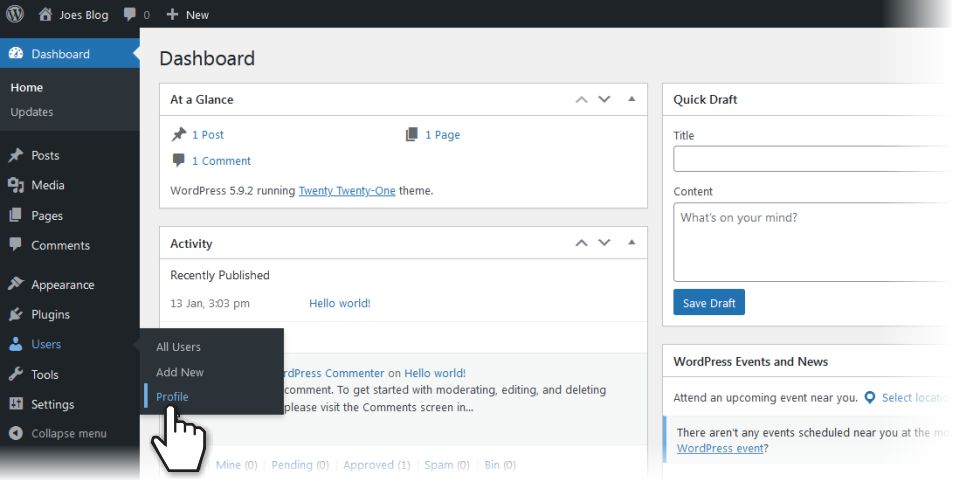
To edit your profile:
- Log in to your WordPress dashboard
- Navigate to Users > Profile
This will open the WordPress User Profile screen where you can update your account settings and personal information.
WordPress User Profile Settings Explained
The WordPress profile page is divided into several sections. Here’s what each option does.
Personal Options
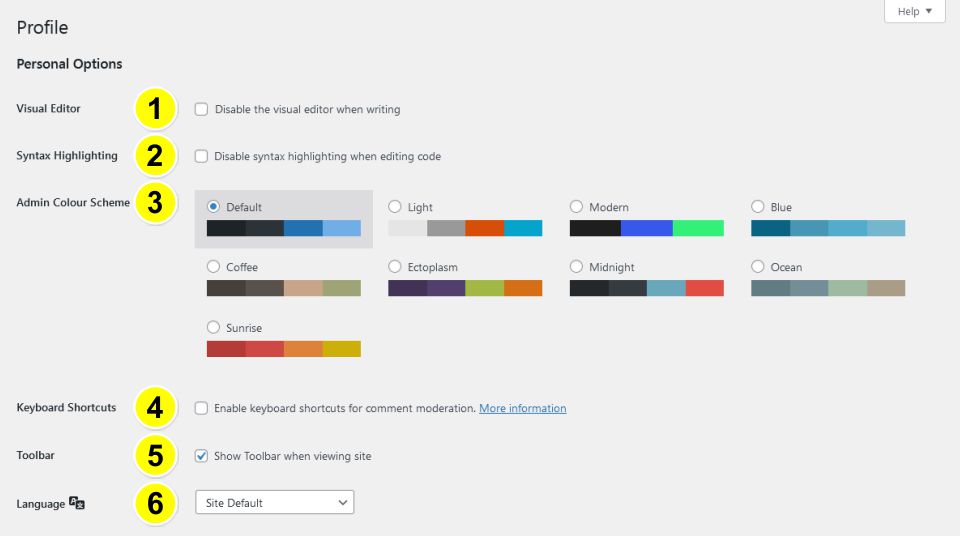
1. Visual Editor
The Visual Editor allows you to use WordPress’s block editor and formatting tools when writing posts and pages.
Disable this option only if you prefer working directly with HTML or code.
2. Syntax Highlighting
Syntax highlighting improves code readability by displaying different colours for code elements.
Most users should leave this enabled.
3. Admin Colour Scheme
WordPress allows you to customise the appearance of the admin dashboard with different colour schemes.
This setting only changes the appearance of your dashboard and does not affect your website design.
4. Keyboard Shortcuts
Keyboard shortcuts can speed up comment moderation and navigation inside WordPress.
This feature is especially useful for websites with active blogs or communities.
5. Toolbar
The toolbar is the black admin bar displayed at the top of your website when logged in.
You can disable it if you prefer a cleaner browsing experience while viewing your site.
6. Language
This setting controls the language used in your WordPress dashboard.
Many websites use the default language setting, while others customise it for local regions such as English (South Africa).
Name Settings in WordPress
The Name section controls how your name appears publicly on your website.
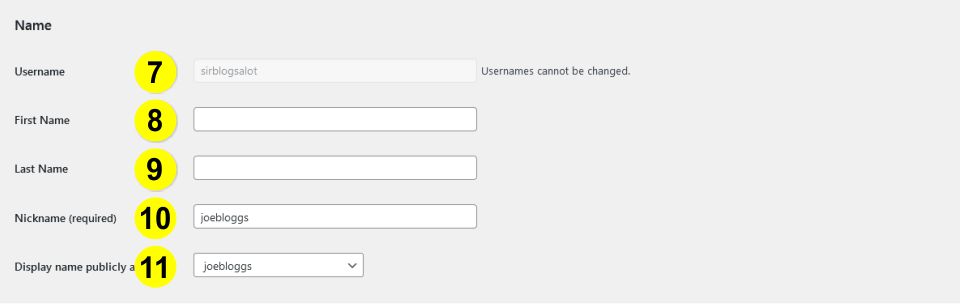
7. Username
Your username is used to log in to WordPress.
By default, WordPress does not allow usernames to be changed from the admin area. For security reasons, avoid using simple usernames like “admin”.
Please read my article Changing Your Admin Username in WordPress for reasons you may need to change your username and how to do it.
8. First Name
Add your real first name here.
9. Last Name
Add your surname or family name.
10. Nickname
The nickname field is required and can be anything you choose.
Using a nickname instead of your username can improve security and privacy.
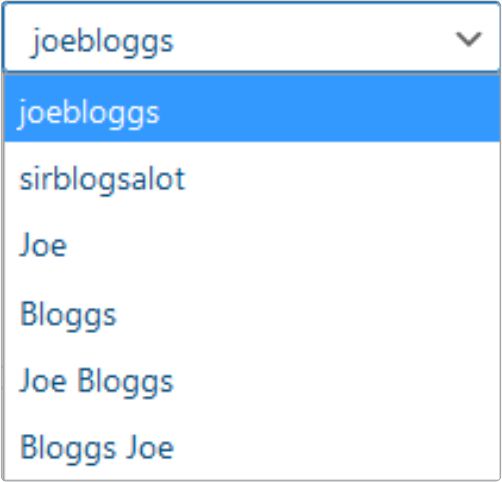
11. Display Name Publicly As
This setting controls how your author name appears on blog posts and pages.
You can choose from:
- Username
- First name
- Last name
- Full name
- Nickname
Selecting a professional display name helps strengthen your website branding.
The next section deals with your contact information.

Contact Information
12. Email Address
Your email address is linked to your WordPress account and is used for:
- Password resets
- Notifications
- Account management
Always use a valid and secure email address.
13. Website
Users can add their personal or business website URL here.
Depending on your theme or plugins, this may appear publicly on author profiles.
Let’s move on to the About Yourself section.
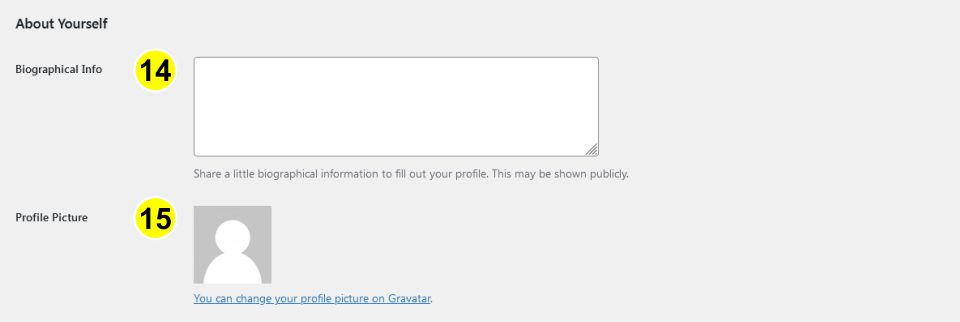
About Yourself Section
14. Biographical Info
The biography section allows you to write a short description about yourself.
Many WordPress themes display this information beneath blog posts or on author archive pages.
A strong author bio can improve credibility and SEO.
15. Profile Picture
WordPress uses Gravatar for profile images.
To add or change your profile picture:
- Visit the Gravatar website
- Create an account using the same email address as your WordPress account
- Upload your image
Your profile picture will automatically appear across WordPress websites linked to that email address.
Account Management in WordPress
Changing Your Password
The Account Management section allows you to:
- Create a new password
- Generate a secure password
- Log out of other active sessions
Using a strong password is one of the best ways to secure your WordPress website.
What Are Application Passwords?
Application Passwords are designed for advanced users and developers.
They allow third-party applications to securely connect to the WordPress REST API without sharing your main account password.
Most standard WordPress users will not need this feature.
Final Thoughts
Editing your WordPress user profile is a simple but important part of managing your website. From updating your display name to improving account security, understanding these settings helps you create a more professional and secure WordPress experience.
Whether you are a subscriber, author, editor, or administrator, keeping your profile updated ensures your website runs smoothly and securely.
If you manage multiple users on your website, understanding WordPress user roles can also help you control permissions and improve workflow management.

Cimeron Collins
Cimeron is an artist and designer based in Edenvale, South Africa, with over 30 years of experience in the printing and publishing industries.
He’s also an avid WordPress enthusiast who strives to stay up to date with the latest trends in web design and development, constantly exploring new technologies and refining his skills.
Leave a Reply