

If you want to sell products online, you need a reliable and easy way to build your store. In this beginner-friendly guide, you will learn how to build an e-commerce website with WordPress and WooCommerce — step by step.
What Is E-Commerce?
E-commerce refers to buying and selling products or services online. You can sell physical items, digital downloads, or even services through an online store. A well-built e-commerce website helps you reach more customers and grow your business.
What is WordPress?
WordPress is a free, open-source content management system (CMS). It allows you to create and manage websites without needing advanced coding skills. Many beginners choose WordPress because it is flexible, easy to use, and widely supported.
What is WooCommerce?
WooCommerce is a free plugin that turns your WordPress site into a fully functional online store. It lets you add products, manage orders, accept payments, and control shipping—all from one dashboard.
The Basic Requirements for an E-Commerce Website
Before you launch your website, make sure you have the following:
1. Register a Domain Name
Your domain name is your website address (for example, www.myshop.co.za). Choose a name that is simple, memorable, and relevant to your business.
2. Choose a Web Hosting Provider
A hosting provider stores your website files and makes your site accessible online. Many hosting companies offer affordable plans with WordPress pre-installed.
3. Get an SSL Certificate
An SSL certificate secures your website by encrypting data between your site and your visitors. It also helps build trust and improves your search engine ranking. Most hosting providers include a free SSL certificate.

Why Use a Local WordPress Installation?
You can install WordPress on your computer to build your site offline. This approach lets you:
- Test your design safely
- Learn without risk
- Build your store before going live
Once you feel satisfied, you can move your site to a live server.
For more information on how to install WordPress on your own computer, please see my article The How and Why of Installing WordPress on Your Own Computer.
How to Build an E-Commerce Website with WordPress
Follow these simple steps to create your online store.
Step 1. Install and Activate WooCommerce
The first step is to install the WooCommerce plugin. You’ll find it in the WordPress Plugins Directory.
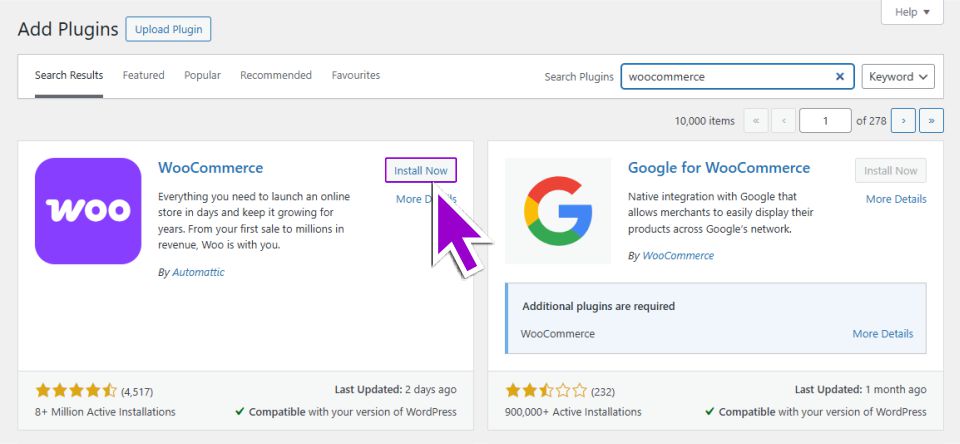
Go to your WordPress dashboard
- Click Plugins > Add New
- Search for “WooCommerce”
- Click Install Now
- Click Activate
WooCommerce will now be ready to use.
Step 2. Set Up WooCommerce
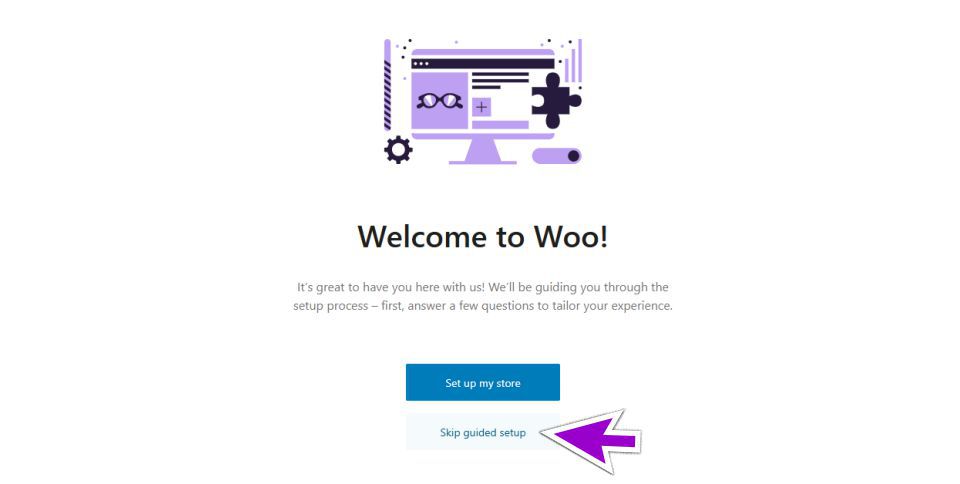
Once activated, WooCommerce launches a setup wizard.
You can follow the guided setup or skip it if you prefer manual control.
If you skip the setup:
- Enter your store location (e.g., South Africa – Gauteng)
- Click “Go to my store”
- Wait for WooCommerce to complete the basic setup
WooCommerce will automatically create essential pages like:
- My Account
- Shop
- Cart
- Checkout
Step 3: Add Your Products
Now you can start adding products to your store.
- Go to Products > Add New
- Enter the product name and description
- Set your price
- Upload product images
- Choose product categories
- Click Publish
Repeat this process for each product.
Read more on Adding Products in WooCommerce and Shipping Options.
Step 4: Choose a WordPress Theme
Your theme controls how your store looks.
Choose a theme that:
- Supports WooCommerce
- Loads quickly
- Looks clean and professional
Popular options include free and premium themes designed for online stores.
Step 5: Set Up Payments
To accept payments, go to:
WooCommerce > Settings > Payments
Enable your preferred payment methods, such as:
- Credit/debit cards
- EFT (bank transfer)
- PayPal or other gateways
Follow the setup instructions for each option.
Step 6: Configure Shipping
Set up your shipping options under:
WooCommerce > Settings > Shipping
You can:
- Offer flat-rate shipping
- Provide free shipping
- Set location-based rates
Clear shipping rules help customers complete purchases faster.
Step 7: Test Your Website
Before going live, test your store:
- Place a test order
- Check payment processing
- Review mobile responsiveness
- Fix any errors
Testing ensures a smooth customer experience.
Final Thoughts
Building an e-commerce website with WordPress and WooCommerce is simple — even for beginners. With the right setup, you can create a professional online store without coding.
Start small, focus on user experience, and improve your store over time. Once your website goes live, you can begin marketing your products and growing your business.
Need Help with Your Website?
If you would prefer a professional setup for your e-commerce website, please feel free to contact me. Visit my home and services pages for more about me and what I do.

Cimeron Collins
Cimeron is an artist and designer based in Edenvale, South Africa, with over 30 years of experience in the printing and publishing industries.
He’s also an avid WordPress enthusiast who strives to stay up to date with the latest trends in web design and development, constantly exploring new technologies and refining his skills.

Leave a Reply